🔍 Status
Check the status of working directory and staging area:
git status
Show changes between HEAD and working directory:
git diff
Show the list of commits in one line format:
git log --oneline
Show commits that make add or remove a certain string:
git log -S 'LoginViewController'
Search commits that contain a log message:
git log — all — grep=’day of week’
🔍 Tag
List all tags:
git tag
Tag a commit:
git tag -a 1.4 -m "my version 1.4"
Delete remote tags:
git push --delete origin tagnamegit push origin :tagname
Push tag to remote:
git push origin tagname
Rename tag:
git tag new old
git tag -d old
git push origin :refs/tags/old
git push --tags
Move tag from one commit to another commit:
git push origin :refs/tags/<tagname>
git tag -fa tagname
git push origin master --tags
🔍 Remote
List all remote:
git remote
Rename remote:
git remote rename old new
Remove stale remote tracking branches:
git remote prune origin
🔍 Branch
List all branches:
git branch
Create the branch on your local machine and switch in this branch:
git checkout -b branch_name
Create branch from commit:
git branch branch_name sha1_of_commit
Push the branch to remote:
git push origin branch_name
Rename other branch:
git branch -m old new
Rename current branch:
git branch -m new
Rename remote branch:
git branch -m old new               # Rename branch locally
git push origin :old                 # Delete the old branch
git push --set-upstream origin new   # Push the new branch, set local branch to track the new remote
Delete a branch:
git branch -D the_local_branchgit push origin :the_remote_branch
Delete all local branches but master
git branch | grep -v "master" | xargs git branch -D🔍 Commit
Undo last commit:
git reset --hard HEAD~1
Squash last n commits into one commit:
git rebase -i HEAD~5git reset --soft HEAD~5
git add .
git commit -m "Update"
git push -f origin master
Move last commits into new branch:
git branch newbranch
git reset --hard HEAD~3 # Go back 3 commits. You *will* lose uncommitted work.*1
git checkout newbranch
🔍 Cherry Pick
Add some commits to the top of the current branch:
git cherry-pick hash_commit_A hash_commit_B🔍 Reflog
Show reflog:
git reflog
Get commit:
git reset --hard 0254ea7git cherry-pick 12944d8🔍 Revert
Revert the previous commit:
git revert HEAD
git commit
Revert the changes from previous 3 commits without making commit:
git revert --no-commit HEAD~3..🔍 Amend
Amend previous commit:
git commit --amendgit commit --amend --no-editgit commit --amend -m "New commit message"git commit --amend -m "New commit message"
git push --force <repository> <branch>🔍 Checkout
Checkout a tag:
git checkout tagnamegit checkout -b newbranchname tagname
Checkout a branch:
git checkout destination_branch
Use -m if there is merge conflict:
git checkout -m master // from feature branch to master
Checkout a commit:
git checkout commit_hashgit checkout -b newbranchname HEAD~4git checkout -b newbranchname commit_hashgit checkout commit_hash file
Checkout a file:
git checkout c5f567 -- Relative/Path/To/File🔍 Stash
Save a change to stash:
git stash save "stash name"git stash
List all stashes:
git stash list
Apply a stash:
git stash popgit stash applygit stash apply stash@{2}🔍 Rebase
Rebase the current branch onto master:
git rebase master // rebase the current branch onto master
Continue rebase:
git rebase --continue
Abort rebase:
git rebase --abort
🔍 .gitignore
Un-track files that have just been declared in .gitignore:
git rm -r --cached .
git add .
git commit -am "Remove ignored files"
🔍 Index
Remove untracked files:
git clean
Remove file from index:
git reset file
Reset the index to match the most recent commit:
git reset
Reset the index and the working directory to match the most recent commit:
git reset --hard🔍 Misc
Get their changes during git rebase:
git checkout --ours foo/bar.java
git add foo/bar.java
Get their changes during git merge:
git pull -X theirsgit checkout --theirs path/to/the/conflicted_file.phpgit checkout --theirs .
git add .git checkout branchA
git merge -X theirs branchB
Merge commits from master into feature branch:
git checkout feature1
git merge --no-ff master
Find bug in commit history in a binary search tree style:
git bisect start
git bisect good
git bisect bad
Git alias
If there are commands that you use a lot, then consider using git alias. This is how to make alias for
git status, then you can just type git st:git config — global alias.st status
Alias configurations are stored in
.gitconfig file, you can learn some cool aliases from thoughtbot and mathiasbynens.GUI clients
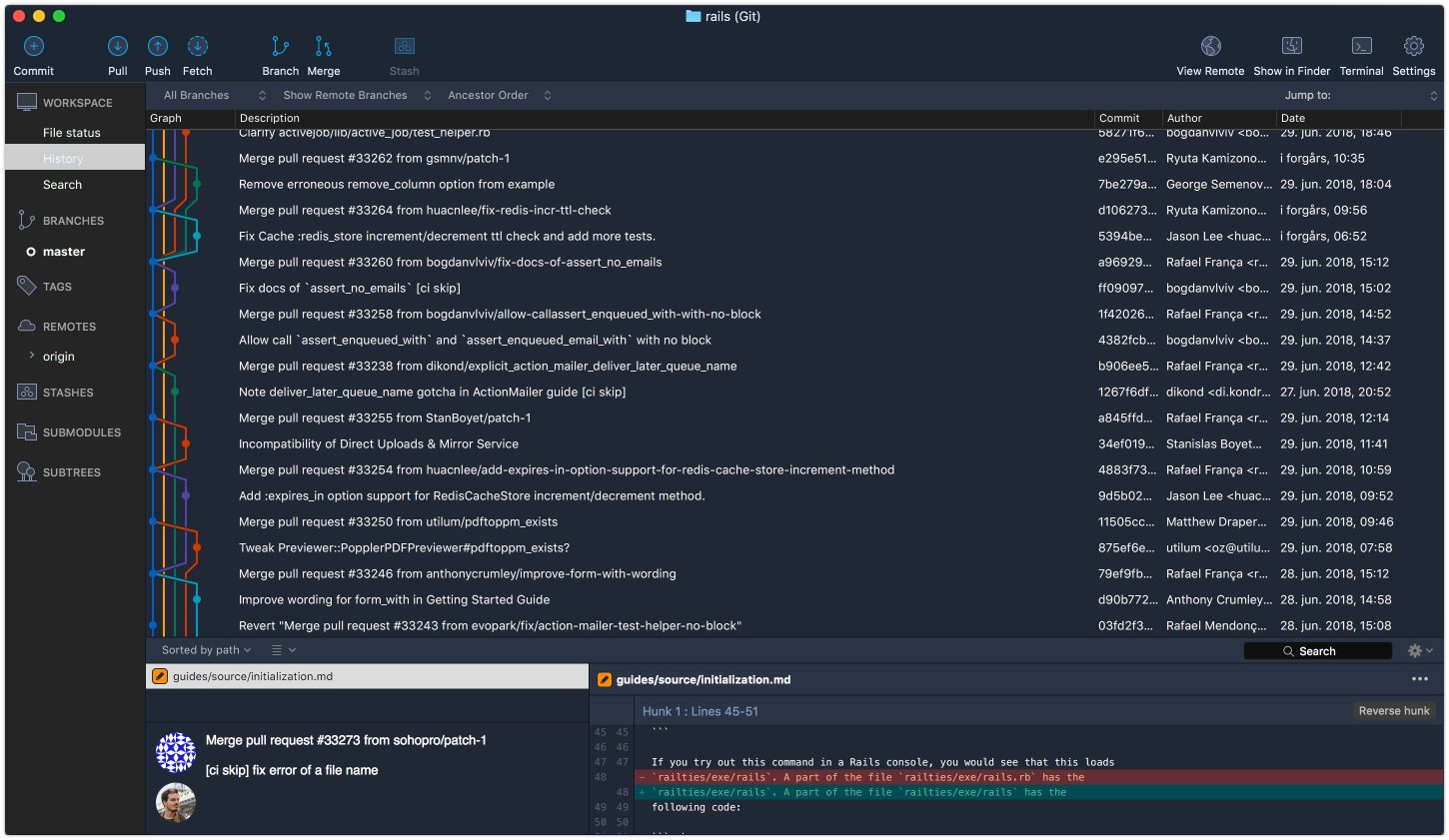
Doing things in command line is cool and faster. However for viewing branches and commits, I find using a GUI client more visualizing and comfortable. You can see a list of all GUI clients here, I myself use SourceTree.
Check before you commit
We usually have some experiment code that we don’t want they to step into our commit. I usually mark my experiment with
// <TEST> but sometimes forget to unstage that.
Starting with 2.9, Git has improvement on its commit hook which makes it globally using hooksPath.
Firstly we nee to create a file called
pre-commit, and place it into, for example, /Users/khoa/hooks:
In your project, run
git config core.hooksPath /Users/khoa/hooks.
Whenever you commit a file with that pattern, it won’t let you commit. For how to make this work in SourceTree, check:
SourceTree and pre commit hook

Pre-commit file works perfectly in terminal, but SourceTree seems to ignore it. I use both terminal and SourceTree, as I also like the visual representation of branches and commits besides all the powerful git commands.
As of SourceTree 2.4.1, it defaults to use Embedded Git 2.8.1, but the hooksPath requires git 2.9+
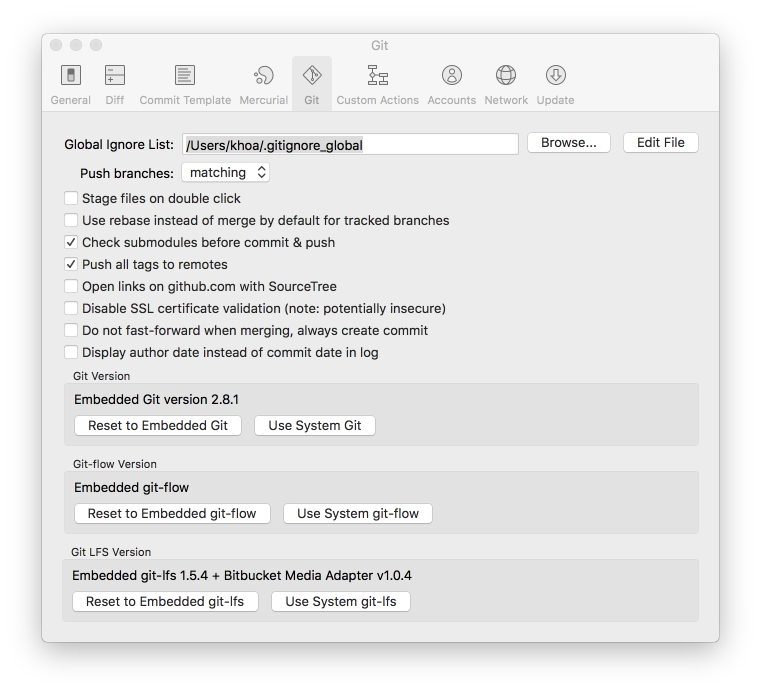
So all we have to do is to go to
SourceTree -> Preferences -> Git and choose Use System Git which lies in /usr/bin/git As of mac Sierra 10.12.3 we have git 2.10.1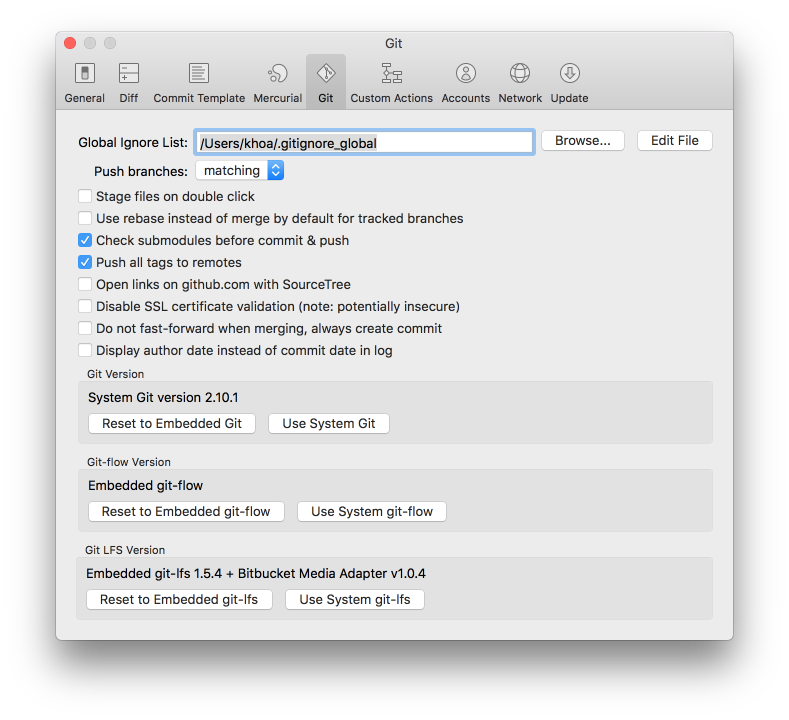
Now precommit hooks work in SourceTree



 Posts
Posts


