Showing posts with label Linux du Command. Show all posts

Friday, 2 August 2019

du (disk usage) - du command examples and its explanation

Du command represents the disk usage in the Linux system.
Du command is used to list the directories or files along with their storage consumption.

Difference between du command and df command:

"df command" explains the memory utilization at the filesystem levels.
"du command" explains the memory used by each file and its corresponding directories.

Disk usage of a particular directory:

Syntax:
du directory-name
sample command output is given below,

[root@sys1 /]# du /repo/
16       /repo/lost+found
3354380  /repo/Packages
36156    /repo/isolinux
17256    /repo/repodata
264      /repo/EFI/BOOT
272      /repo/EFI
64       /repo/LoadBalancer/repodata
76       /repo/LoadBalancer
68       /repo/ScalableFileSystem/repodata
80       /repo/ScalableFileSystem
280      /repo/ResilientStorage/repodata
292      /repo/ResilientStorage
34584    /repo/images/pxeboot
207492   /repo/images
16720    /repo/Server/repodata
16864    /repo/Server
248      /repo/HighAvailability/repodata
260      /repo/HighAvailability
3635968  /repo/

In the above output, the digits represent the number of disk blocks of the files.

Note: 
The above output is same as du -k option as well.

Disk usage of a particular directory in human readable format:

By using the "du –h" command we can list the disk usage of the particular directory.
[root@sys1 ~]# du -h /repo/
16K           /repo/lost+found
3.2G          /repo/Packages
36M           /repo/isolinux
17M           /repo/repodata
264K          /repo/EFI/BOOT
272K          /repo/EFI
64K           /repo/LoadBalancer/repodata
76K           /repo/LoadBalancer
68K           /repo/ScalableFileSystem/repodata
80K           /repo/ScalableFileSystem
280K          /repo/ResilientStorage/repodata
292K          /repo/ResilientStorage
34M           /repo/images/pxeboot
203M          /repo/images
17M           /repo/Server/repodata
17M           /repo/Server
248K          /repo/HighAvailability/repodata
260K          /repo/HighAvailability
3.5G          /repo/

Human readable format means the usage of the files or directories in,
K- kilo bytes, M- megabytes and G- gigabytes.

Display total directory size:

By using the "du –sh" command we can know the grand total disk usage of a particular directory.
“-s” option will give the summary of the size.
[root@sys1 ~]# du -sh /repo
3.5G     /repo

[root@linbox1 etc]# du -sh /var
627M     /var

Display the biggest file in a directory:
du -h /var | sort -n | tail -n 5

Display all files and their sizes in a directory:
By using the du –a command we can list the disk usage of all file sand directories
[root@sys1 ~]# du -a /repo
16864       /repo/Server
140         /repo/RELEASE-NOTES-te-IN.html
0           /repo/5
88          /repo/RELEASE-NOTES-ru-RU.html
4           /repo/HighAvailability/repodata/repomd.xml
248         /repo/HighAvailability/repodata
4           /repo/HighAvailability/TRANS.TBL
4           /repo/HighAvailability/listing
260         /repo/HighAvailability
12          /repo/EULA_pt
8           /repo/EULA_zh
0           /repo/EULA
0           /repo/4
Tuesday, 23 October 2018

How To Find The Size Of A Directory In Linux

This brief tutorial explains how to find the size of a directory in Unix-like operating systems. Finding size of files and directories in GUI mode is easy! All we have to do is just right click on the file or directory, and choose the properties option from the context menu. However, it is equally important to find the size of a directory from CLI mode. Doing stuffs from command line is easier and faster. Allow me show you how to find a directory’s size in Linux in command line.

Find the size of a directory

To find out the size of a directory, we will use ‘du’ command. du stands for disk usage.
The typical syntax of du command is given below:
du [OPTION]... [FILE] [directory]...

du [OPTION]... --files0-from=F
Let us type the ‘du’ command in the Terminal and see what it displays.
$ du
sample output:
As you see above, du command displays the disk usage of the directories along with its sub-directories in the current directory.
To display a particular directory’s size, for example ostechnix, run:
$ du ostechnix/
Sample output:
36252 ostechnix/Swami Vivekananda (Chicago Speech)
452 ostechnix/MultiCD/plugins
44 ostechnix/MultiCD/.git/hooks
4 ostechnix/MultiCD/.git/branches
1012 ostechnix/MultiCD/.git/objects/pack
4 ostechnix/MultiCD/.git/objects/info
1020 ostechnix/MultiCD/.git/objects
8 ostechnix/MultiCD/.git/logs/refs/heads
8 ostechnix/MultiCD/.git/logs/refs/remotes/origin
12 ostechnix/MultiCD/.git/logs/refs/remotes
24 ostechnix/MultiCD/.git/logs/refs
32 ostechnix/MultiCD/.git/logs
8 ostechnix/MultiCD/.git/refs/heads
4 ostechnix/MultiCD/.git/refs/tags
8 ostechnix/MultiCD/.git/refs/remotes/origin
12 ostechnix/MultiCD/.git/refs/remotes
28 ostechnix/MultiCD/.git/refs
8 ostechnix/MultiCD/.git/info
1168 ostechnix/MultiCD/.git
140 ostechnix/MultiCD/maps
2706504 ostechnix/MultiCD
2832056 ostechnix/
As you can see in the above output, the size of the directories is displayed in bits. We can also display the size in human readable format.
To do so, add -h tag with du command as shown below.
$ du -h ostechnix/
Sample output:
36M ostechnix/Swami Vivekananda (Chicago Speech)
452K ostechnix/MultiCD/plugins
44K ostechnix/MultiCD/.git/hooks
4.0K ostechnix/MultiCD/.git/branches
1012K ostechnix/MultiCD/.git/objects/pack
4.0K ostechnix/MultiCD/.git/objects/info
1020K ostechnix/MultiCD/.git/objects
8.0K ostechnix/MultiCD/.git/logs/refs/heads
8.0K ostechnix/MultiCD/.git/logs/refs/remotes/origin
12K ostechnix/MultiCD/.git/logs/refs/remotes
24K ostechnix/MultiCD/.git/logs/refs
32K ostechnix/MultiCD/.git/logs
8.0K ostechnix/MultiCD/.git/refs/heads
4.0K ostechnix/MultiCD/.git/refs/tags
8.0K ostechnix/MultiCD/.git/refs/remotes/origin
12K ostechnix/MultiCD/.git/refs/remotes
28K ostechnix/MultiCD/.git/refs
8.0K ostechnix/MultiCD/.git/info
1.2M ostechnix/MultiCD/.git
140K ostechnix/MultiCD/maps
2.6G ostechnix/MultiCD
2.8G ostechnix/
Now you see the size of the directories in Kilobytes, Megabytes, and Gigabytes, which is very clear and easy to understand.
We can also display the disk usage size only in KB, or MB, or GB.
To do so, use -k for kilobytes, -m for megabytes
$ du -k ostechnix/
$ du -m ostechnix/
To find out which sub-directories consume how much disk size, use this command:
$ du -h --max-depth=1 | sort -hr
The largest sub-directories will be displayed on the top. You can increase the directory depth level by increasing the value of –max-depth parameter.
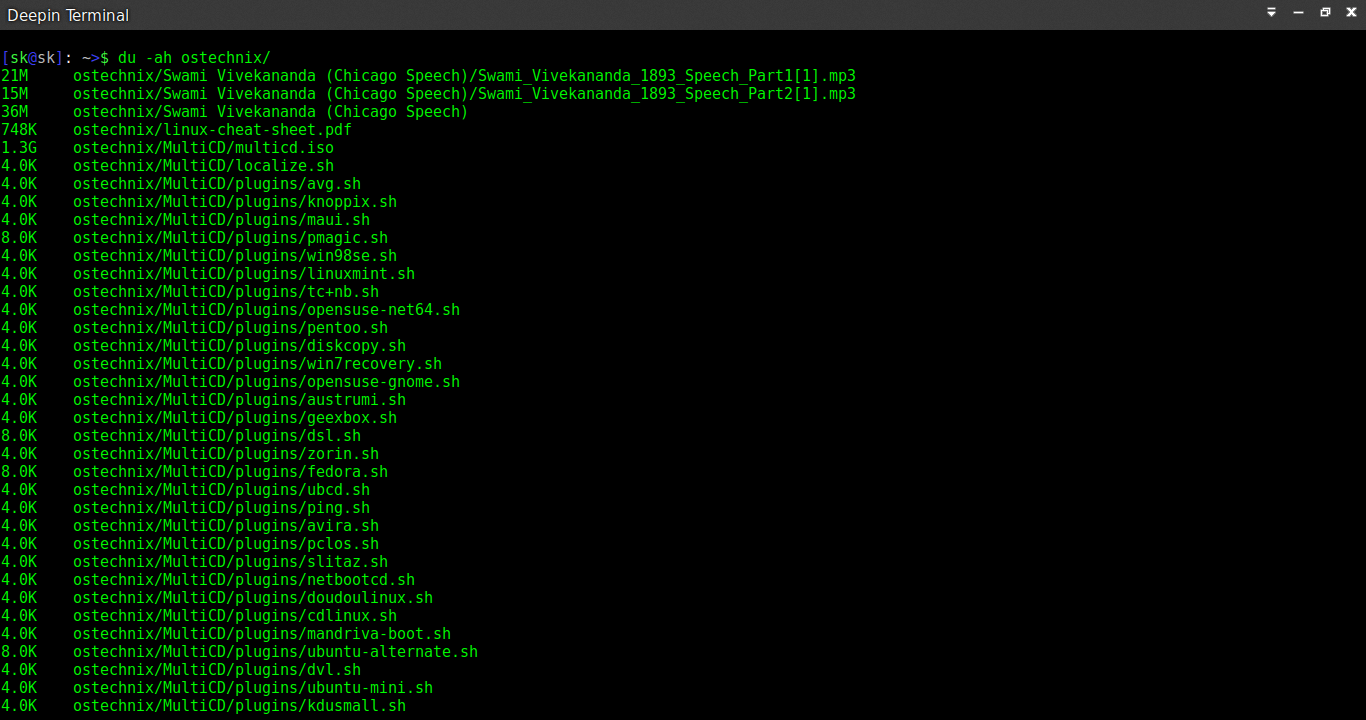
As you may noticed in the all above outputs, du command only displayed the disk usage of directories. But, what about the files? To display the disk usage of all items including files and directories, use -a flag.
$ du -ah ostechnix/
Sample output:
Now, you will see the disk usage of all files and folders in human readable form.
We can also display the size of multiple directories at once as shown below.
$ du -h directory1 directory2
If you want to check the total disk space used by a particular directory, use the -s flag.
$ du -sh ostechnix
Here, -s flag indicates summary.
Sample output:
2.8G ostechnix
Similarly, to display the total disk space used by multiple directories, for example ostechnix and /etc, run:
$ du -sh ostechnix /home/sk/
Sample output:
2.8G ostechnix
279G /home/sk/
To display the grand total of directories, add -c flag with du -sh command.
$ du -csh ostechnix /home/sk/
Sample output:
2.8G ostechnix
279G /home/sk/
281G total
To display only the grand total of the given directory including all  the sub-directories, use ‘grep’ command with ‘du’ command like below.
$ du -ch Downloads/ | grep total
12G total
You might want to exclude certain type of files. The following command will display the size of the current directory including its sub-directories, but it will exclude the size of all .mp4 files.
$ du -ch --exclude='*.mp4' | grep total 
6.4G total
Can we find the biggest or smallest directories or files? Of course, yes! Check the following guide.
For more details about ‘du’ command, check the man pages.
$ man du