NTRODUCTION
In our previous article on working with the git version control system, we explained and familiarized the concept of the HEAD. In this article, we introduce you to the git checkout command and explain how it can be used to restore files to their previous committed states.
What is git checkout?
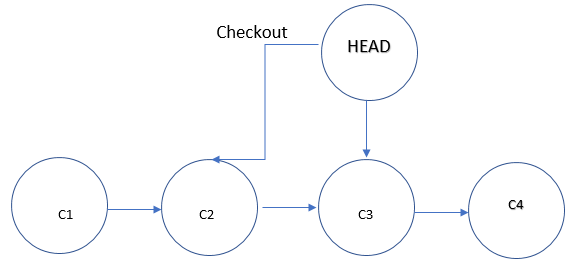
The git checkout command takes the HEAD and moves it to a different point in the commit history of your git repository. So, the git checkout command allows us to check out or restore a previous state of the file. We can commit the restored version of the file and save it as the most recent commit or we could revert to the most recent committed version of the file using git checkout.
The git checkout command takes the HEAD and moves it to a different point in the commit history of your git repository. So, the git checkout command allows us to check out or restore a previous state of the file. We can commit the restored version of the file and save it as the most recent commit or we could revert to the most recent committed version of the file using git checkout.
Demonstration:
We’ll now demonstrate how we can use the git checkout command to revert to a previous state of a single file in a git repository and also how to restore the checked out file back to its last committed state.
Let’s take a look at the state of our repository two commits before the current commit using git diff.
[sahil@linuxnix my_first_repo]$ git diff HEAD~2
diff --git a/README.md b/README.md
deleted file mode 100644
index ba76a74..0000000
--- a/README.md
+++ /dev/null
@@ -1 +0,0 @@
-This is a readme file for my first git repository
diff --git a/test.txt b/test.txt
index 06ee124..e945f40 100644
--- a/test.txt
+++ b/test.txt
@@ -1,3 +1,4 @@
This is a test file!
Added another line to test file
Adding a third line to test file
+Adding a fourth line to test file
[sahil@linuxnix my_first_repo]$
The file test.txt has a line “Adding a fourth line to test file” which was not there in the file two commits before.
[sahil@linuxnix my_first_repo]$ cat test.txt
This is a test file!
Added another line to test file
Adding a third line to test file
Adding a fourth line to test file
Now we will restore the file test.txt to two commits before its current state using git checkout.
[sahil@linuxnix my_first_repo]$ git checkout HEAD~2 test.txt
[sahil@linuxnix my_first_repo]$
If we open the file using the cat command and view its contents we observe that the line “Adding a fourth line to test file” is no longer present in the file.
[sahil@linuxnix my_first_repo]$ cat test.txt
This is a test file!
Added another line to test file
Adding a third line to test file
[sahil@linuxnix my_first_repo]$
Although we have restored a previous version of the file, as far as git is concerned the file has been modified. So, when we run the git status command we will see that the file test.txt has been modified and is ready to be committed.
[sahil@linuxnix my_first_repo]$ git status
# On branch master
# Changes to be committed:
# (use "git reset HEAD <file>..." to unstage)
#
# modified: test.txt
#
[sahil@linuxnix my_first_repo]$
If you wish to keep the previous version of the file then you may commit the retrieved previous state of the file with the git commit command and save the previous version of the file as the currently committed version. You might have just wanted to view the contents of the file in its previous state and do not intend to work with it further. To get back the last committed state of the file, we first need to reset the HEAD which will unstage the previous version of the file that is now ready to be committed.
[sahil@linuxnix my_first_repo]$ git reset HEAD test.txt
Unstaged changes after reset:
M test.txt
[sahil@linuxnix my_first_repo]$
When we run the git status command we observe that the file is available in the repository in it’s previous checked out state still.
[sahil@linuxnix my_first_repo]$ git status
# On branch master
# Changes not staged for commit:
# (use "git add <file>..." to update what will be committed)
# (use "git checkout -- <file>..." to discard changes in working directory)
#
# modified: test.txt
#
no changes added to commit (use "git add" and/or "git commit -a")
To restore the file to it’s last committed state we use the git checkout command again as follows.
[sahil@linuxnix my_first_repo]$ git checkout -- test.txt
If we try to view the contents of the file test.txt now we find that the file is back to its last committed state.
[sahil@linuxnix my_first_repo]$ cat test.txt
This is a test file!
Added another line to test file
Adding a third line to test file
Adding a fourth line to test file
[sahil@linuxnix my_first_repo]$
Running the git status command shows that there are no changes ready to be staged or committed.
[sahil@linuxnix my_first_repo]$ git status
# On branch master
nothing to commit, working directory clean
[sahil@linuxnix my_first_repo]$
Using git reset HEAD with the –hard option:
The git reset HEAD command with the –hard option could be regarded as a panic/undo button for the entire repository. For example, if you make some changes to files that you haven’t staged yet and don’t intend to keep then you may use git reset HEAD –hard to revert the entire repository to its last committed state.
The git reset HEAD command with the –hard option could be regarded as a panic/undo button for the entire repository. For example, if you make some changes to files that you haven’t staged yet and don’t intend to keep then you may use git reset HEAD –hard to revert the entire repository to its last committed state.
Demonstration:
I have a file named help.txt in my repository and I’ve added a line to the file that I do not wish to keep.
I have a file named help.txt in my repository and I’ve added a line to the file that I do not wish to keep.
[sahil@linuxnix test_repo]$ git status
# On branch master
# Changes not staged for commit:
# (use "git add <file>..." to update what will be committed)
# (use "git checkout -- <file>..." to discard changes in working directory)
#
# modified: help.txt
#
no changes added to commit (use "git add" and/or "git commit -a")
[sahil@linuxnix test_repo]$
[sahil@linuxnix test_repo]$ git diff
diff --git a/help.txt b/help.txt
index f48c398..7d398e2 100644
--- a/help.txt
+++ b/help.txt
@@ -3,3 +3,5 @@ Testing out stuff
updated this file

Added another line to file
+
+I don't want this line
I need to discard the line “I don’t want this line” from the file help.txt and I might have made other changes to some other files that I do not intend to keep. In this case, I could use the git reset HEAD –hard command to revert the entire repository to it’s last committed state as shown below:
[sahil@linuxnix test_repo]$ git reset HEAD --hard
HEAD is now at 734d5e9 Added another line to help.txt
[sahil@linuxnix test_repo]$
[sahil@linuxnix test_repo]$ git status
# On branch master
nothing to commit, working directory clean
[sahil@linuxnix test_repo]$
[sahil@cent7 test_repo]$ git log --oneline
734d5e9 Added another line to help.txt
1b6a278 updated help.txt
84798a1 created help.txt
CONCLUSION
In this article, we explained how to use the git checkout command to restore a file to an earlier committed state and later how to revert the file back to it’s most recent committed state. In case you forget to mention the name of the file while running the git checkout command, you reach a state referred to as a ‘detached HEAD’.


 Posts
Posts


