Showing posts with label Linux SSH. Show all posts

Monday, 5 August 2019

How to install SSH on Ubuntu

SSH is nice tool to connect to the server. it encrypts all traffic to eliminate eavesdropping, connection hijacking, and other attacks. I will be giving the steps for installing that on Ubuntu OS

Step 1: First check if it is already running
ps -ef |grep -i SSH
Step 2:  Now install the SSH using the command
sudo apt-get install openssh-server -y
Here are some issue which you may get
a) I get the below error when  I fire the above command
unable to lock the administration directory (/var/lib/dpkg/) is another process using it” on the command line.
In order to resolve ,I did below steps
i) I first check if any apt session in progress
ps -ef|grep -i apt
Kill each of the process as they may hung processes
ii) Delete the lock file
sudo rm /var/lib/dpkg/lock
sudo rm /var/lib/apt/lists/lock
sudo rm /var/cache/apt/archives/lock
This should the resolve the above issue
b) Second issue which i got  is for unable to connect to “us.archive.ubuntu.com” or “in.archive.ubuntu.com”
This is a mis-configuration on the DNS side on the server.
We can configure /etc/hosts with IP address and name to resolve it
sudo echo “91.189.91.23 us.archive.ubuntu.com” >> /etc/hosts
sudo echo “91.189.88.152 in.archive.ubuntu.com” >> /etc/hosts
If you get permission denied error ,then use nano or vi editor to make the changes
After these, my sudo apt-get command completed successfully and i can see the SSH process running
Step 3 : Now the step to change port(optional) and allow it it Firewall
i) We can change the port from default 22 to something like 14234
sudo nano /etc/ssh/sshd_config
or
sudo vi /etc/ssh/sshd_config
and change the port
ii) Now allow the port through firewall
sudo ufw allow 14234
or
sudo ufw allow 22
iii) Restart the ssh service
sudo service ssh restart
Now we are done with the configuration of SSH on ubuntu.
You can connect to the Ubuntu system using Putty tool and test it

Useful SSH Putty commands to help you manage the VPS /Dedicated Server


These are 41 Most Useful SSH Putty commands to help you manage the VPS (Virtual Private server) or Dedicated Server.


This should help you in daily work on  the server.  I have included command for all major Linux distribution like Cent-OS ,Ubuntu
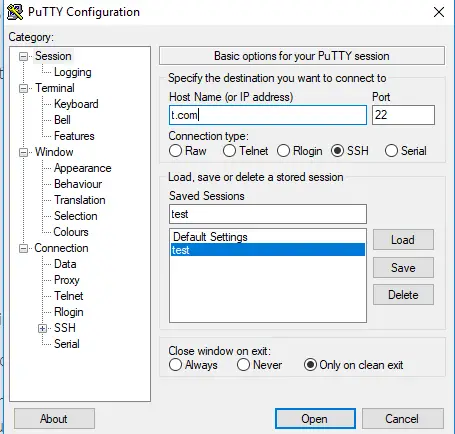
1)How to connect to Server using putty
Download Putty here

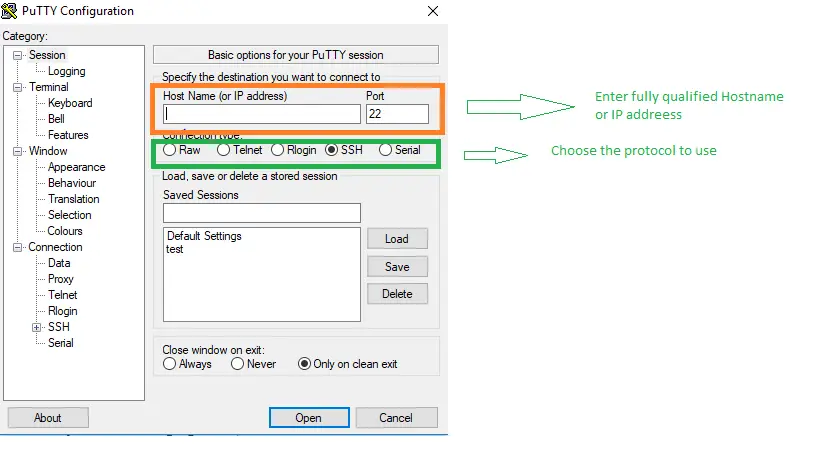
a)Provide Hostname or IP address of the VPS or dedicated server
b) Choose SSH or telnet
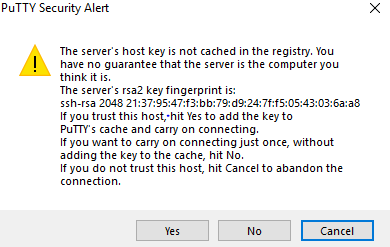
c) For SSH, it will ask for verification of keys
d) Provide username and password and  login to the system
we can use the puttycm tool.It is very useful if you are managing multiple server
2) Check Linux Distribution
cat /etc/*-release
3) How to reboot the VPS
reboot
4) How to find uptime of the box
Uptime
5) How to check the filesystem space
df -k
or
df -h
6) How to check CPUWe can use top command
top
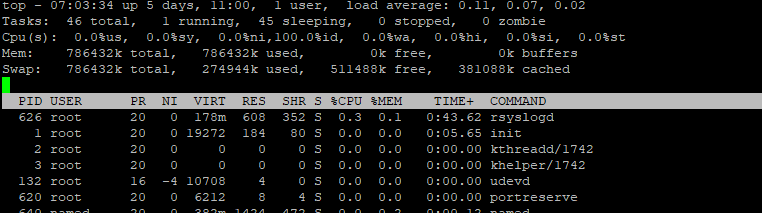
SSH Putty commands
7) How to update package
Cent-OS distribution
yum update
Ubuntu distribution
apt-get install

8) How to list the file
Use ls command
ls : it will list file
ls -lrt : it will list files in order of timestamp
ls -l: it will list file with details

9) How to locate the configuration files
locate my.cnf
locate httpd.cnf

10) How to start and Stop httpd service
how to start and stop httpd service

11) How to stop and start the MySql service
How to start and stop mysql on Linux

12) How to edit the file 
We can use either vi and Nano editor for it
check out below tutorials for vi
for Nano,below command will be of help
nano <file name> : This will open filename for edit.
13) How to create directory
mkdir command is used to create directory
mkdir image
14) How to remove the file
rm command can be used to delete the file
rm <file name>

15) How to change password for the username
As root user
passwd <user name>
As user only
passwd

16) How to remove the directory
rmdir can be used to delete the directory. Directory must be empty for  deletion from this command
rmdir <directory name>

17) How to kill a process
Sometimes , you may want to kill a  stuck process. You can use kill command to do it. We need to get the PID of the process and then kill using below command
kill <pid>

18) How to search for a string across the files
You can use grep command to do it. Read below detailed article on it
grep "test" *.txt

19) How to backup the directory or folder
You may often want to backup directory or folder before performing changes on the system . We can use tar command for this. It is a very useful utility to perform backup
tar -cvf foldername.tar foldername
tar -xvf foldername.tar

20) How to check the content of the file
We can use cat command for it
cat <file  name >
If the file is large , we can use more here to scroll as required
cat <file name>|more

21) How to download files from external locations
Use wget command.
wget http://wordpress.org/latest.tar.gz

22)  How to change ownership of the files or directory
chown can be used to do it
chown tech:tech <filename>
chown -R tech:tech <directory name> : It will change ownership in directory recursively

23)  How to change permission of the files
We can use chmod command for that
chmod 755 <file name>

24)  How to find the system name and version
uname -a

25) How to find the version of Ubuntu running on the system
cat /etc/issue

26) how to walk into the directories
We use cd command to walk into directories
cd <directory name>
To come out of directory, we use
cd ..

27) How to copy the files
Use cp command to do it
cp <file name1> <filename 2>

28) How to rename the files or directories
Use mv command
mv file1 file2

29) How to check for Port usage in the system
netstat -anp|grep <port no>

30) How to shutdown the box
Type shutdown command
shutdown

31) How to check what all users are logged into the box
Use finger command
finger

32) How to check for running processes on the system
Use ps command
ps -ef|grep <process name>
ps -ef|grep mysql

33) How to check the used and free RAM on the box
Use free command
free

34) How to enable service start on reboot ?
We can use chkconfig or systemctl command for this
chkconfig mysqld on
systemctl mysqld enable

35) How to find files across directories
We can use find command
find . -name "test*" -print

36) How to read large file in command line
We can use more command to read the large file in command line
more

37)Printing last few lines
We can use tail command to print the lines at the end of file
tail 
We can specify the number of lines also
tail -100 alert.log

38)Printing starting few lines
We can use head command to print the lines at the start of file
head 
We can specify the number of lines also
head -100 alert.log

39)command line history
We can use history command to print all the command executed recently. This can help us find the command executed
history

40)File Manipulation command
We can use awk or sed for that. These are very powerful command
ps -ef|grep pmon|awk '{print $NF}'
Please read below articles for details
41)man command to know about option for the above command
We can use man
man history
SSH Putty commands

How to Setup ssh passwordless login using SSH keygen between two servers

We need to connect system for monitoring,administration.We need to have ssh passwordless login setup to remote server for monitoring and administration.

In this article ,I will post steps on

How to Setup ssh passwordless login using SSH keygen between two servers

System 1 : serv1
System 2 : serv2
Username : orac
Lets us first describe from system 1 to system 2.So source server is serv1 and destination server is serv2
Step 1:
serv1_orac$ mkdir ~/.ssh
serv2_orac$ mkdir ~/.ssh
Step 2:
serv1_orac$ cd ~/.ssh
Step 3:
serv1_orac$ ssh-keygen -t rsa
Generating public/private rsa key pair.
Enter file in which to save the key (“your_local_home”/.ssh/id_rsa):
Enter passphrase (empty for no passphrase):
Enter same passphrase again:
Your identification has been saved in id_rsa.
Your public key has been saved in id_rsa.pub.
The key fingerprint is:
17:6a:e3:78:ab22d:0c:8e:f9:67:f1:30:32:64:89:34 orac@serv1
Step 4:
serv1_orac$ scp ~/.ssh/id_rsa.pub orac@serv2:/home/orac/.ssh/authorized_keys
password#
Step 5:
serv2_orac$ chmod 700 .ssh
serv2_orac$ chmod 644 .ssh/authorized_keys
Ensure your /home/orac directory has the permission 755 also!
Similar steps will be use to enable password less ssh between from system 2 to system 1
Step 1:
serv2_orac$ cd ~/.ssh
Step 2:
serv2_orac$ ssh-keygen -t rsa
Generating public/private rsa key pair.
Enter file in which to save the key (“your_local_home”/.ssh/id_rsa):
Enter passphrase (empty for no passphrase):
Enter same passphrase again:
Your identification has been saved in id_rsa.
Your public key has been saved in id_rsa.pub.
The key fingerprint is:
17:6a:e3:78:ab22d:0c:8e:f9:67:f1:30:32:64:89:34 orac@serv2
Step 3:
serv2_orac$ scp ~/.ssh/id_rsa.pub orac@serv1:/home/orac/.ssh/authorized_keys
password#
Step 4:
serv1_orac$ chmod 700 .ssh
serv1_orac$ chmod 644 .ssh/authorized_keys
Ensure your /home/orac directory has the permission 755 also!

Verify your work of ssh passwordless login setup

serv1_orac$ ssh serv2 date
Wed Jun 19 00:42:27 2015
serv2_orac$ ssh serv1 date
Wed Jun 19 00:42:27 2015
This proves that ssh login without password  is working fine.Password less Authentication has many usage.We can used this in various automated jobs to kick off work at off hours

How to login to Linux with SSH private key from window client


In the previous we learn about how to generate ssh key pair from puttygen. Now we can use that ssh key pair to login to Linux with the putty client

First we need to make sure ,the public keys is the copied to the Linux box user $home/.ssh/authorized_keys.
If you are doing this for cloud instance, cloud vendor provides the mechanism to update the public keys
Now lets see How to login to Linux with SSH private key from window client
Step 1
Run the PuTTY program.
Step 2
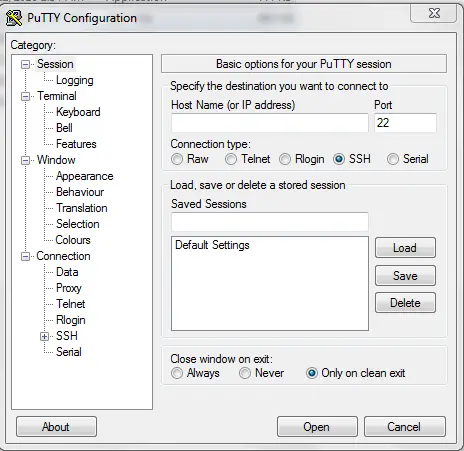
The PuTTY Configuration window is displayed, showing the Session panel.
  1.  Enter the public IP address of your instance in the Host Name (or IP address) box,
  2. Make sure that the Connection type option is set to SSH.
Step 3
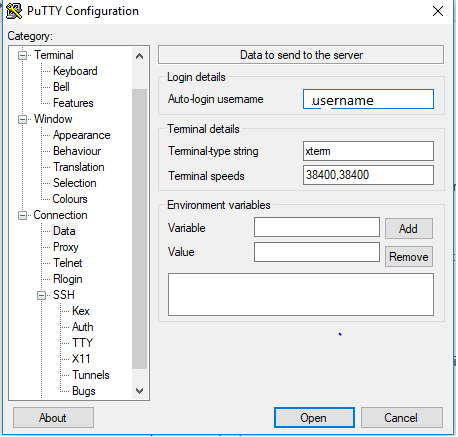
In the Category tree, expand Connection  and  click Data.
The Data panel is displayed.
In Auto-login username box, enter the username
Step 4
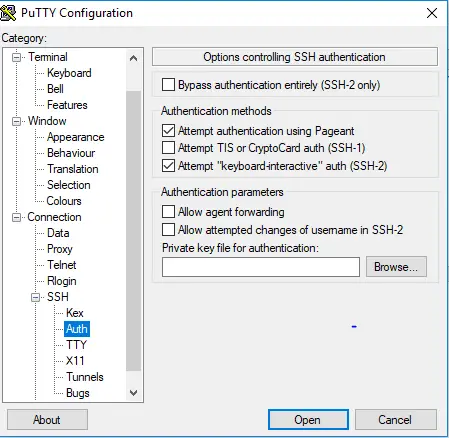
In the Category tree, expand SSH and then click Auth.
The Auth panel is displayed.
Click the Browse button next to the Private key file for authentication box. Navigate to and open the private key file that matches the public key that is associated with your instance.
Step 5
In the Category tree, click Session.
The Session panel is displayed.
In the Saved Sessions box, enter a name for this connection configuration and click Save.
Step 6
Click Open to open the connection.
The PuTTY Configuration window is closed and the PuTTY window is displayed.
Step 7
If this is the first time you are connecting to an instance, the PuTTY Security Alert window is displayed, prompting you to confirm the public key. Click Yes to continue connecting.
Step 9
Terminal window will open.