Showing posts with label Putty. Show all posts

Monday, 5 August 2019

Useful SSH Putty commands to help you manage the VPS /Dedicated Server


These are 41 Most Useful SSH Putty commands to help you manage the VPS (Virtual Private server) or Dedicated Server.


This should help you in daily work on  the server.  I have included command for all major Linux distribution like Cent-OS ,Ubuntu
1)How to connect to Server using putty
Download Putty here
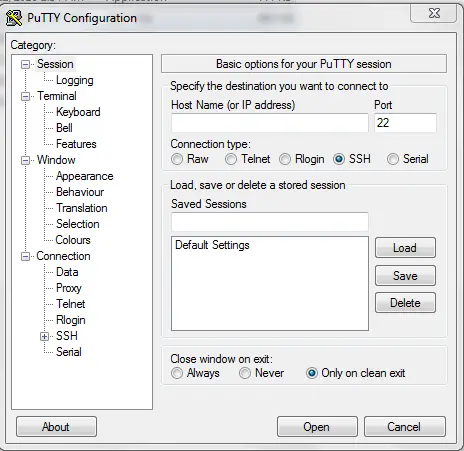
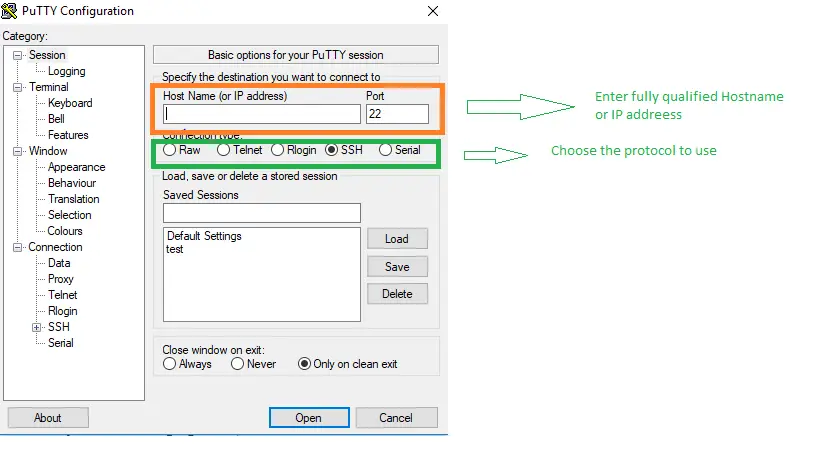
a)Provide Hostname or IP address of the VPS or dedicated server
b) Choose SSH or telnet
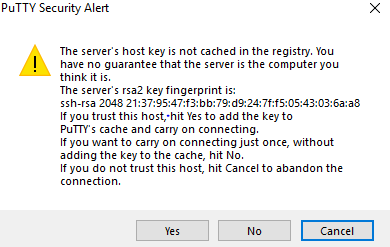
c) For SSH, it will ask for verification of keys
d) Provide username and password and  login to the system
we can use the puttycm tool.It is very useful if you are managing multiple server
2) Check Linux Distribution
cat /etc/*-release
3) How to reboot the VPS
reboot
4) How to find uptime of the box
Uptime
5) How to check the filesystem space
df -k
or
df -h
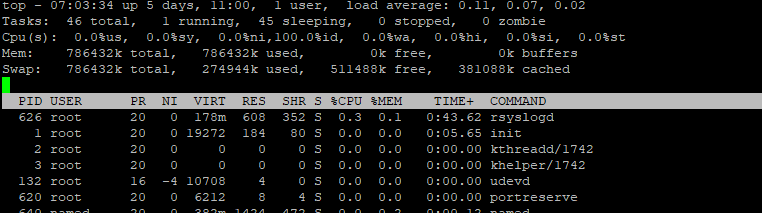
6) How to check CPUWe can use top command
top
SSH Putty commands
7) How to update package
Cent-OS distribution
yum update
Ubuntu distribution
apt-get install

8) How to list the file
Use ls command
ls : it will list file
ls -lrt : it will list files in order of timestamp
ls -l: it will list file with details

9) How to locate the configuration files
locate my.cnf
locate httpd.cnf

10) How to start and Stop httpd service
how to start and stop httpd service

11) How to stop and start the MySql service
How to start and stop mysql on Linux

12) How to edit the file 
We can use either vi and Nano editor for it
check out below tutorials for vi
for Nano,below command will be of help
nano <file name> : This will open filename for edit.
13) How to create directory
mkdir command is used to create directory
mkdir image
14) How to remove the file
rm command can be used to delete the file
rm <file name>

15) How to change password for the username
As root user
passwd <user name>
As user only
passwd

16) How to remove the directory
rmdir can be used to delete the directory. Directory must be empty for  deletion from this command
rmdir <directory name>

17) How to kill a process
Sometimes , you may want to kill a  stuck process. You can use kill command to do it. We need to get the PID of the process and then kill using below command
kill <pid>

18) How to search for a string across the files
You can use grep command to do it. Read below detailed article on it
grep "test" *.txt

19) How to backup the directory or folder
You may often want to backup directory or folder before performing changes on the system . We can use tar command for this. It is a very useful utility to perform backup
tar -cvf foldername.tar foldername
tar -xvf foldername.tar

20) How to check the content of the file
We can use cat command for it
cat <file  name >
If the file is large , we can use more here to scroll as required
cat <file name>|more

21) How to download files from external locations
Use wget command.
wget http://wordpress.org/latest.tar.gz

22)  How to change ownership of the files or directory
chown can be used to do it
chown tech:tech <filename>
chown -R tech:tech <directory name> : It will change ownership in directory recursively

23)  How to change permission of the files
We can use chmod command for that
chmod 755 <file name>

24)  How to find the system name and version
uname -a

25) How to find the version of Ubuntu running on the system
cat /etc/issue

26) how to walk into the directories
We use cd command to walk into directories
cd <directory name>
To come out of directory, we use
cd ..

27) How to copy the files
Use cp command to do it
cp <file name1> <filename 2>

28) How to rename the files or directories
Use mv command
mv file1 file2

29) How to check for Port usage in the system
netstat -anp|grep <port no>

30) How to shutdown the box
Type shutdown command
shutdown

31) How to check what all users are logged into the box
Use finger command
finger

32) How to check for running processes on the system
Use ps command
ps -ef|grep <process name>
ps -ef|grep mysql

33) How to check the used and free RAM on the box
Use free command
free

34) How to enable service start on reboot ?
We can use chkconfig or systemctl command for this
chkconfig mysqld on
systemctl mysqld enable

35) How to find files across directories
We can use find command
find . -name "test*" -print

36) How to read large file in command line
We can use more command to read the large file in command line
more

37)Printing last few lines
We can use tail command to print the lines at the end of file
tail 
We can specify the number of lines also
tail -100 alert.log

38)Printing starting few lines
We can use head command to print the lines at the start of file
head 
We can specify the number of lines also
head -100 alert.log

39)command line history
We can use history command to print all the command executed recently. This can help us find the command executed
history

40)File Manipulation command
We can use awk or sed for that. These are very powerful command
ps -ef|grep pmon|awk '{print $NF}'
Please read below articles for details
41)man command to know about option for the above command
We can use man
man history
SSH Putty commands

PuTTY CONNECTION MANAGER (PuttyCM)


What is PuTTY CONNECTION MANAGER (PuttyCM)


PuttyCM displays multiple PuTTY sessions in Tabs. It is very useful for  the administrator who is working on multiple server at a time. This enables the administrator to perform multiple function with ease. Moreover this is freeware. This can be used for Linux/AIX/solaris and other Operating system easily.

Significant Features of PuttyCM

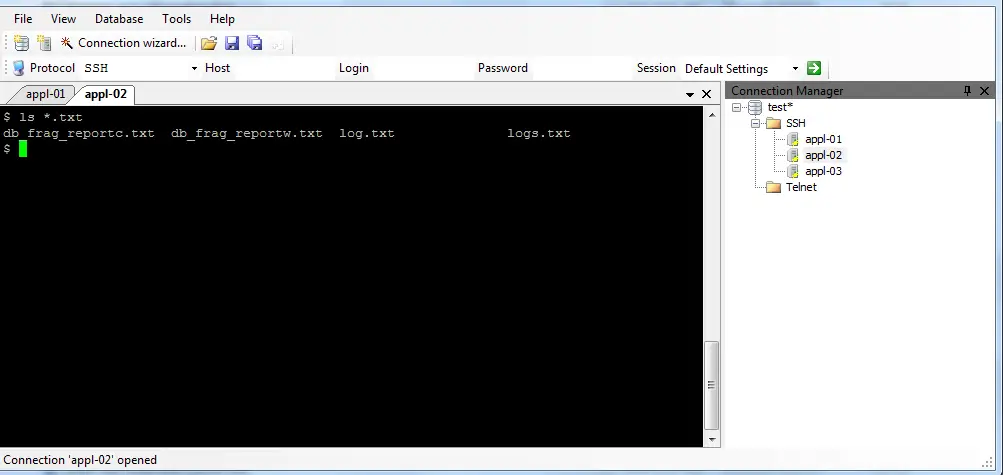
1.Display Multiple PuTTY Sessions in Tab
You can open multiple sessions in Tab just like any word editing tool like editplus++
Display Multiple PuTTY Sessions in Tab in PuTTY CONNECTION MANAGER /putty multiple tabs
Important Note
In order to make it run smoothly you need to set few settings as mentioned below.
Go to Tools -> Options -> Select the check-box “Enable additional timing for PuTTY capture (ms)” -> set the value to   >=500 ms. This will open the PuTTY window inside the TAB as shown below.
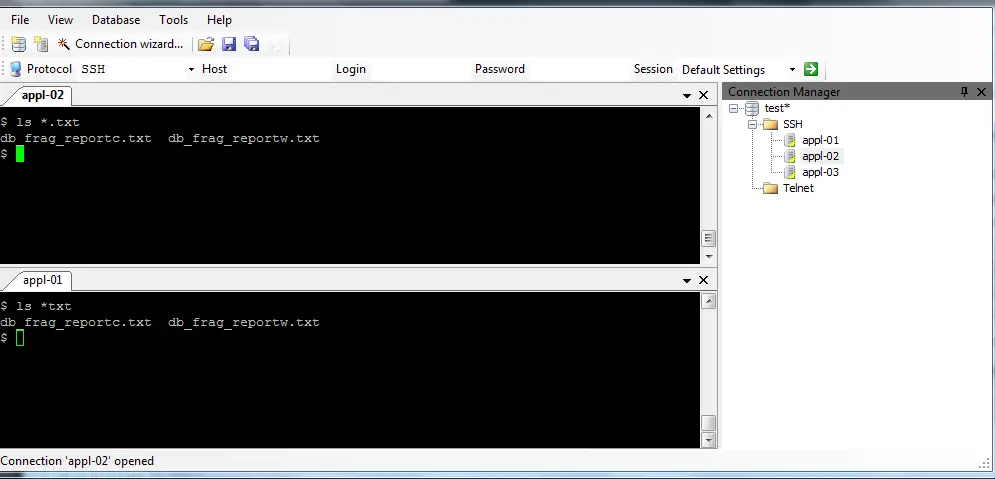
2. Dockable Windows for PuTTY Sessions
Second best feature is apart from displaying multiple PuTTY sessions in Tabs, PuttyCM can also show different PuTTY sessions in panels. This will enables you to view multiple sessions at a time.
puttycm2
3.Multi Command Sender (MCS)
This is another beautiful feature  . You can run the same command on multiple servers with one shot. This will save a lot of time  specially for system administrators
But I personally  feel it is dangerous  and I don’t prefer using it.  For example suppose you are working development and Production. The command which is suppose to run on development is not suppose to run in Production
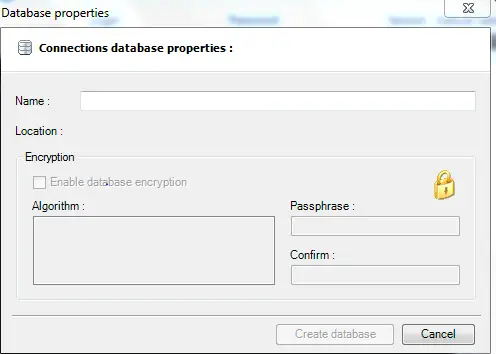
4.Encrypted PuTTY Configuration Database
This has encryption feature  to protect the Putty configuration database.
By default encryption is not on
Encrypted PuTTY Configuration Database in PuTTY CONNECTION MANAGER
How to setup
You need to download the appropriate dll to have the encryption algorithm available and get it worked
  1. Download the AES encryption library (pcmcrypt.dll) from PuTTY CM website.2
  2. Place this file in the PuTTY CM program folder. C:\Program Files\PuTTY Connection Manager
  3. Restart the PuTTY CM
  4. Go to Tools menu -> Options -> Database -> under the Encryption section, the available algorithms should display “AES Rinjdael Managed” as shown below, indicating that the encryption library is successfully installed.


5.Automatic PuTTY Session Login
This is one of the useful feature I have seen in Putty. You can stored password in the repository and can automatic login without password
How to setup it
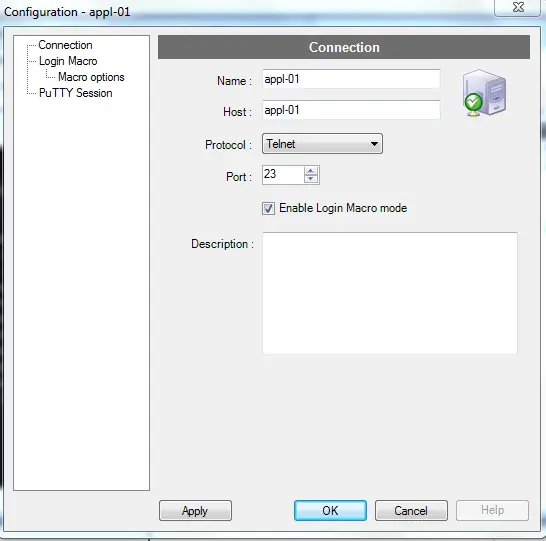
  1. From the putty database, select a particular PuTTY session, right mouse-click and select Configuration, click on the ‘Enable Macro’ check-box as shown below.
how to setup connection in putty connection manager
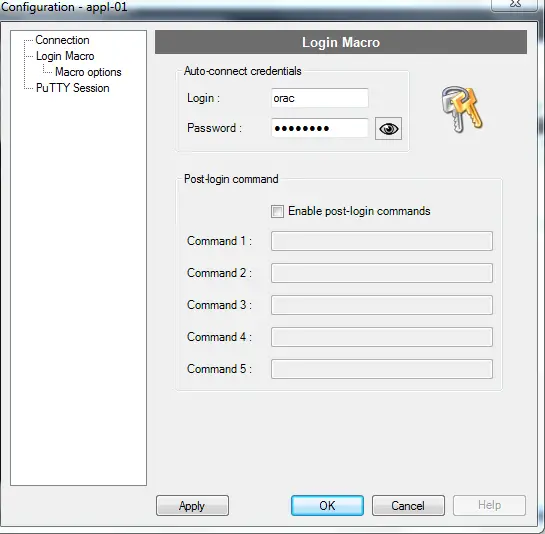
2) From the same PuTTY session configuration window, click on the ‘Login Macro’ from the left-side menu and enter the login/password as shown below.
How to provide post login commands in puttycm
6) PuTTY Session Post-Login Commands
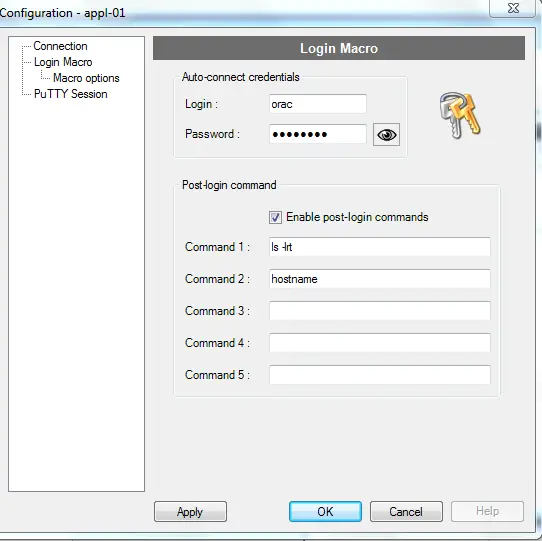
You can also setup post-login command, which will get executed automatically after you login. This is very helpful as sometimes you want to execute some command after your login to system
How to setup
1) The setup of post-login commands is done under the same ‘Login macro’ screen under the ‘Post-login command’ section.
2) Click on ‘Enable post-login commands’ check-box and you can set a total of 5 post login commands as shown below.
puttycm6
How to install PuttyCM
1) Download puttycm software from Valid site
2) PuTTY CM is written in C#. You need .NET 2.0 in your system
3) When you install PuTTY CM for the first time, you need to specify the location of the PuTTY executable.

How to use Putty for SSH


Putty is wonderful client to connect to Linux or Unix server easily. It has the option to connect using both telnet or ssh protocol. It has option of RAW ,serial ,RLogin also


It is available for Windows 95, 98, XP, Vista,7 ,10 and It can downloaded from below link
Download Putty here
How to Setup Putty Client on Windows
1.Download consist of putty.exe executable.
  1. Save the download to your any convenient  folder.
Let’s for example ,the folder is
C:/tech
3.If you want to creat a shortcut  to PuTTY on your desktop:
a.Open the C:/tech folder in Windows Explorer.
b Right click on the putty.exe file and select Send To > Desktop
Now we are ready to launch the PuTTY client
How to launch the PuTTY client
Double-click on the putty.exe program or the desktop shortcut to launch the application.
Following screen will be displayed
Now we are ready to connect to any Linux or Unix server
How to use Putty for SSH or Telnet
You should have beforehand before you proceed with below steps
a)Hostname or IP address of the VPS or dedicated server
b) Protocol to use SSH or telnet
c) For SSH, it will ask for verification of keys
d)  Username and password and  login to the system
Step 1
Put the server name in host name field and choose the appropriate protocol
How to use putty
and click open
Step 2
If you have chosen SSH protocol which is the default and secure one ,then below message will be displayed
how to use putty for ssh connection
Click Yes
In case of telnet ,it will directly go to next step
Step 3
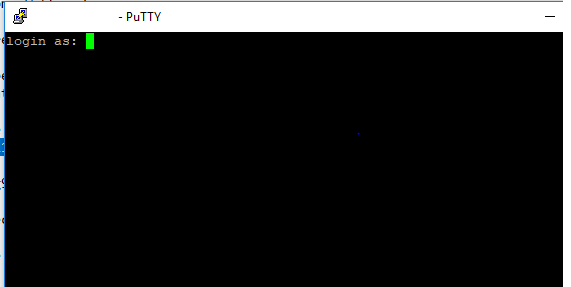
Now you will be shown below on the screen
Enter the Username and then it will ask for password. Enter the password and you will get the $ sign and now you can proceed with your activities
Other features of Putty client which can be used
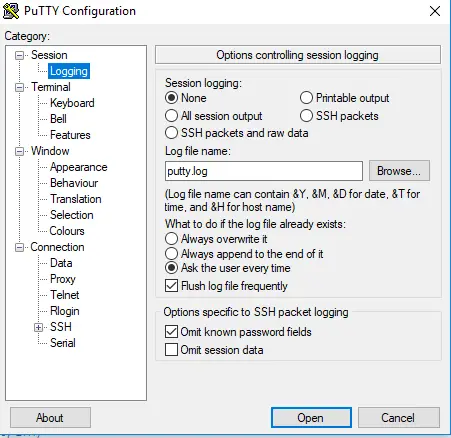
  1. You can log the activities being done on the Putty client using the logging option
You can put the location of logfile as per your convenience
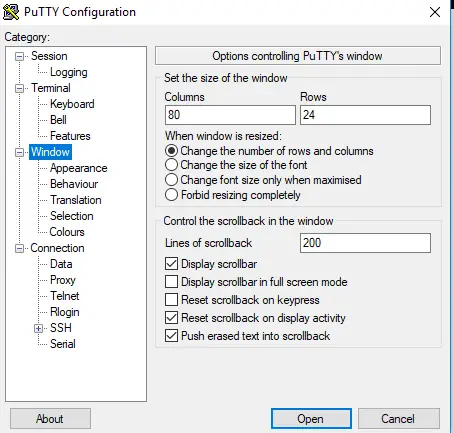
2.   You can specify the Number of rows,column and scroll back length in the window option on  the left hand side
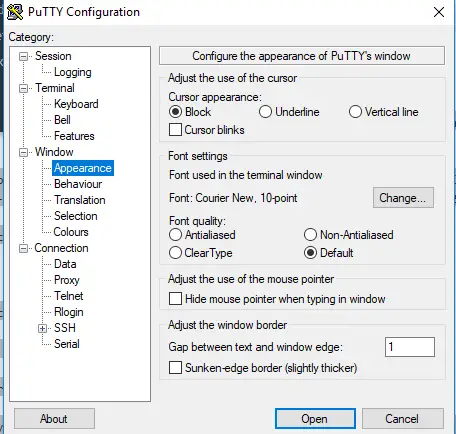
  1. You can specify the cursor type and font settings in appearance on the left side
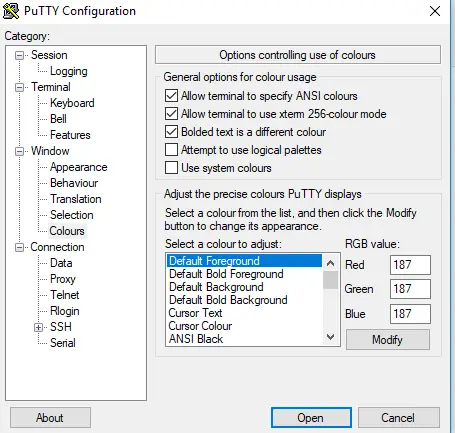
  1. You can change the terminal colour settings using colour setting in left hand side
We can use the puttycm tool.It is very useful if you are managing multiple server