Showing posts with label Linux rsync. Show all posts

Monday, 5 August 2019

Best copy-rename directory linux command examples

While working on development project or support activities  in Linux operation system , I often need to  backup or rename the current working folder /directory before many any changes. Let’s see how we can do accomplished that.

How to copy-rename Files/folder  in Linux Operating system

Linux Operating system provides cp command to copy the files/directory from one place to another  and mv command to move/rename the file/directory/folder. Apart of these we can also use rsync utility to  perform copy and backup.
Each of these command has various options to change  directory
I would explaining each command in details here with many examples

cp  copy files/dirs [copy linux command]

This  command is used in Unix/Linux Operation system to copy the files and directory

cpGeneral Options:
-i Interactive. cp will prompt for confirmation whenever the copy would overwrite an existing target.
-r Recursive. cp will copy the directory and all its files, including any subdirectories and their files to target.
-p Preserve. cp duplicates not only the contents of source_file, but also preserves the owner and group id, permissions modes, modification and access time.
–More Options:
-v verbose. cp will show all the file being copied.
-u copy only if the source file is newer
–backup This option will make backup copy of the file in destination side.–backup=simple option will create a backup file which marked by a tilde sign (~)–attributes-only  This option will copy file with zero bytes and same attribute as source file-f  Force option.  it will force the copying activity. If the destination files cannot be opened, then -f will try again.-a  archive option. It will copy the directory with exact files and directory including symbolic link-L copy without following symbolic link in source-P copy following symbolic link in source

How it works for General option

If directory d2 does not exist, it is created. Otherwise, it creates a directory named d1 within directory d2.
CommandResults
cp x yCopies the contents of x into y. If y does not exist, it is created; otherwise, y is overwritten with the contents of x.
cp -i x yLike above however, since the “-i” (interactive) option is specified, if y exists, the user is prompted before it is overwritten with the contents of x.
cp x d1Copy the contents of x (into a file named x) inside of directory d1.
cp -R d1 d2Copy the contents of the directory d1.

Examples of copy directory linux command


Copy the file myfile1 to myfile2
cp  myfile1 myfile2
Copy multiple files to the directory
cp file1 file2 file3   dir1/
Copy the file preserving the timestamp
cp -p  file1  file1_backup
Copy a directory dir1 to dir2
cp -r dir1  dir2
Copy a directory dir1 to home directory
cp -r dir1 /home/user/
Copy the file myfile1 to myfile2 with verbose option
cp   -v myfile1 myfile2

Copy the file myfile1 to myfile2 only if source file is newer wih verbose option
cp -vu myfile.txt /home/users/
Copy the files using interactive mode
cp -I *.txt dir/

Screenshot of  copy directory linux command
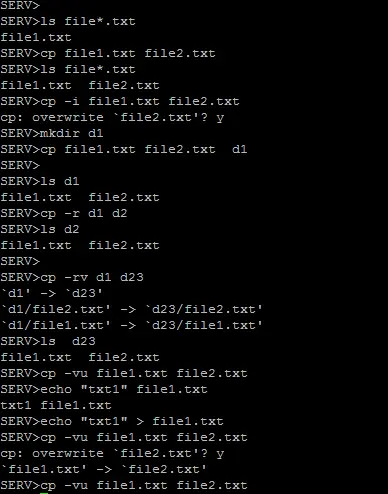
copy directory linux

mv – move files(s) /dirs[how to rename a directory in linux]

Options: –
-f   mv will move the file(s) without prompting even if it is writing over an existing target.
-i   mv will prompt for confirmation whenever the  move would  overwrite  an  existing  target
Examples
  1.   mv –i f1.txt f2.txt
[moves f1.txt to f2.txt, if f2.txt exists prompts for confirmation.]
  1.   mv file1 file2 file3  dest_directory.
[ moves file1 to 3 to dst_directory.]
  1.    mv –r oracle/app /u000
[ moves directory app and all its subdirectories files to /u000 directory]
  1. mv f1.txt oracle/f2.txt
[ moves directory app and all its subdirectories files to /u000 directory]

You can find all the option of cp and mv using the command man cp,man mv
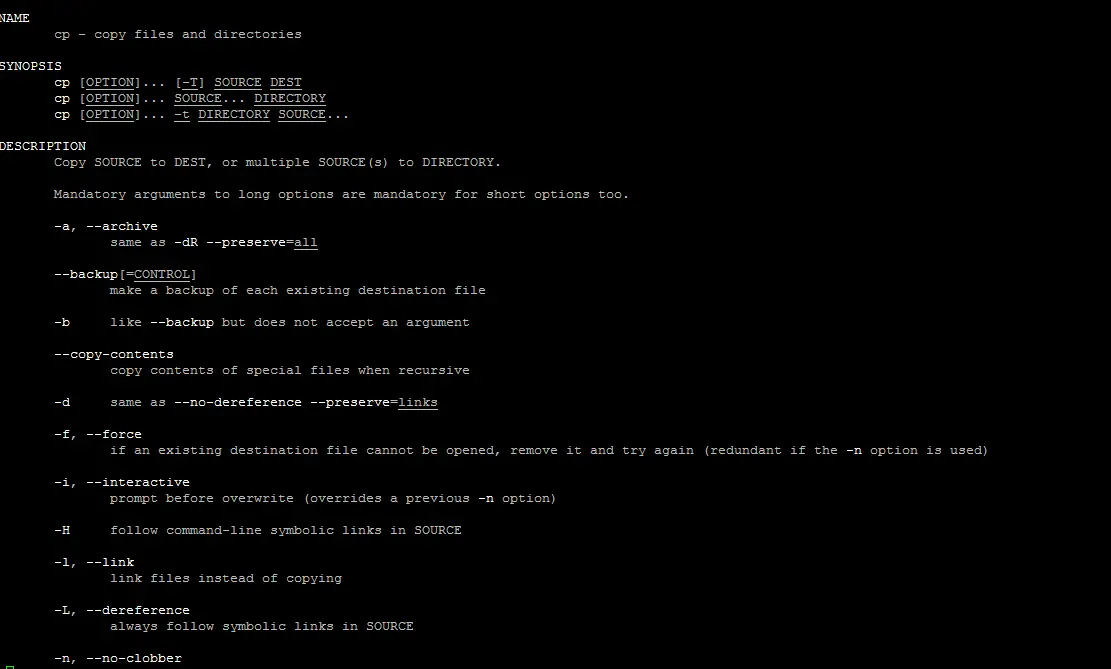
linux copy directory

rsync

We have written a nice article previously to explain various option it. I would certainly recommend you to read it and get the benefits
Frequently asked question for copy directory command
1) how to copy multiple directories to a directory in Linux
Answer
You can use copy command like this
suppose you need to copy directories dir1 dir2 to dir3, then copy like below
cp -r dir1 dir2 dir3/
2) How to copy the directory tree structure without copying the files inside them
Answer
find SOURCE -type d -exec mkdir -p TARGET/{} \;

Conclusion

Copying or backing up the folder or files is not a scary task. If you know the commands  with the option available , it is easy to copy or backup the folder/directory in Linux.We can use either of three command cp,mv or rsync according to the need and circumstances. I would suggest you to go over unix box and create a directory with sample files  and try the option given above to get hands on experience with the commands

Linux :: RSYNC command – sync the data between two directory

I have to sync up the two directory many times on Unix boxes.The simple steps would be to delete the directory from destination and take a backup on source destination  and copy it to the destination directory.

It was good for small directories but This process will consume lot of time  as directory size grow up.
I searched around and find that The fastest way to do this process would be to use RSYNC utilty
It uses ‘rsync algorithm’ which provides a very fast method for syncing the directories or filesystems. An important feature of rsync is that the mirroring takes place with only one transmission in each direction and which is not available in other similar programs.
Rsync’s default port is 873 and its an opensource software. Rsync is available for Unix,Linux and windows operating systems. You can freely download rsync source code from rsync.samba web portal.
Key features of RSYNC command;
Support for copying links, devices, owners, groups and permissions
Exclude and exclude-from options similar to GNU tar
A CVS exclude mode for ignoring the same files that CVS would ignore
Does not require root privileges
Pipelining of file transfers to minimize latency costs
Support for anonymous or authenticated rsync servers (ideal for mirroring)
I would be giving the basics on RSYNC and how to use it effectively to sync the directories/code
How to use RSYNC – sync the data between two directory
SOURCE_PATH=’/u900/oracle/’
SOURCE_SERVER=’myserver1′
DESTINATION_PATH=’/u900/oracle-bck/’
DESTINATION_HOST=’myserver2′
DESTINATION_USER=’oracle’
rsync -av –rsh=ssh $SOURCE_PATH $DESTINATION_USER@$DESTINATION_HOST:$DESTINATION_PATH
Here
-a option is called the archive option,It means following things
Recursive mode
Preserves symbolic links
Preserves permissions
Preserves timestamp
Preserves owner and group
-v  Verbose option
This command once run will ask for the password of oracle user on Destination machine.Once password is given it will sync the change files in the directory to the destination server
If u need to enable this sync through a automated job, then this script should be working without prompting for password.
We  can password less ssh setup between the machine to achieve it
Automated script would be  like
$ cat rsync_oracle.sh
#!/bin/ksh
SOURCE_PATH=’/u900/oracle/’
SOURCE_SERVER=’myserver1′
DESTINATION_PATH=’/u900/oracle-bck/’
DESTINATION_HOST=’myserver2′
DESTINATION_USER=’oracle’
LOGFILE=’rsync_oracle.log’
echo $’\n\n’ >> $LOGFILE
rsync -av –rsh=ssh $SOURCE_PATH $DESTINATION_USER@$DESTINATION_HOST:$DESTINATION_PATH 2>&1 >> $LOGFILE
echo “Sync Completed at:`/bin/date`” >> $LOGFILE
$chmod 700 rsync_oracle.sh
The  same  command of RSYNC can be used in the same server also
SOURCE_PATH=’/u900/oracle/’
SOURCE_SERVER=’myserver1′
DESTINATION_PATH=’/u900/oracle-bck/’
DESTINATION_HOST=’myserver1′
rsync -av  $SOURCE_PATH $DESTINATION_PATH
Some more points to remember
1)If the directories contain mulitple owner,then I would suggest doing it using root user
2) We can delete the files at destination site which are deleted on source site by adding –delete in RSYNC
rsync -av –rsh=ssh –delete $SOURCE_PATH $DESTINATION_PATH
3) it can also be acheived using RSYNC deamon which is configured through /etc/rsyncd.conf on Solaris.But it is not necessary to use that.
Benefits of RSYNC command
1) First time, rsync replicates the whole content between the source and destination directories. Next time, rsync transfers only the changed blocks or bytes to the destination location, which makes the transfer really fast.
2) We can use ssh protocol for rsync which allows encryption of data during transfer.So it is quite secure
3) Less Bandwidth: rsync uses compression and decompression of data block by block at the sending and receiving end respectively. So the bandwidth used by rsync will be always less compared to other file transfer protocols.
Some Practical RSYNC Command
  1.   Synchronizing the directories on the local server
rsync -av  /app/src/ /app1/dest/

2.  Synchronizing the directories on the remote  server
rsync -av  /app/src/ tech@remotehost:/app1/dest/

3. Synchronizing the  directory structure on the remote  server
rsync -v  -d  /app/src/ tech@remotehost:/app1/dest/

4. How to Include and Exclude Pattern during File Transfer
rsync -av  –exclude ‘U*’  /app/src/ tech@remotehost:/app1/dest/
The above command exclude any file starting with U

5. How to delete files at the destination
rsync -av –rsh=ssh –delete /app/src/ tech@remotehost:/app1/dest/
