Showing posts with label Linux tar Command. Show all posts

Tuesday, 6 August 2019

Quick tar command examples to create/extract archives in Linux

The tar (tape archive) command is a frequently used command on linux that allows you to store files into an archive.
The commonly seen file extensions are .tar.gz and .tar.bz2 which is a tar archive further compressed using gzip or bzip algorithms respectively.
In this tutorial we shall take a look at simple examples of using the tar command to do daily jobs of creating and extracting archives on linux desktops or servers.

Using the tar command

The tar command is available by default on most linux systems and you do not need to install it separately.
With tar there are 2 compression formats, gzip and bzip. The "z" option specifies gzip and "j" option specifies bzip. It is also possible to create uncompressed archives.

1. Extract a tar.gz archive

Well, the more common use is to extract tar archives. The following command shall extract the files out a tar.gz archive
$ tar -xvzf tarfile.tar.gz
Here is a quick explanation of the parameters used -
x - Extract files
v - verbose, print the file names as they are extracted one by one
z - The file is a "gzipped" file
f - Use the following tar archive for the operation
Those are some of the important options to memorise
Extract tar.bz2/bzip archives
Files with extension bz2 are compressed with the bzip algorithm and tar command can deal with them as well. Use the j option instead of the z option.
$ tar -xvjf archivefile.tar.bz2

2. Extract files to a specific directory or path

To extract out the files to a specific directory, specify the path using the "-C" option. Note that its a capital C.
$ tar -xvzf abc.tar.gz -C /opt/folder/
However first make sure that the destination directory exists, since tar is not going to create the directory for you and will fail if it does not exist.

3. Extract a single file

To extract a single file out of an archive just add the file name after the command like this
$ tar -xz -f abc.tar.gz "./new/abc.txt"
More than once file can be specified in the above command like this
$ tar -xv -f abc.tar.gz "./new/cde.txt" "./new/abc.txt"

4. Extract multiple files using wildcards

Wildcards can be used to extract out a bunch of files matching the given wildcards. For example all files with ".txt" extension.
$ tar -xv -f abc.tar.gz --wildcards "*.txt"

5. List and search contents of the tar archive

If you want to just list out the contents of the tar archive and not extract them, use the "-t" option. The following command prints the contents of a gzipped tar archive,
$ tar -tz -f abc.tar.gz
./new/
./new/cde.txt
./new/subdir/
./new/subdir/in.txt
./new/abc.txt
...
Pipe the output to grep to search a file or less command to browse the list. Using the "v" verbose option shall print additional details about each file.
For tar.bz2/bzip files use the "j" option
Use the above command in combination with the grep command to search the archive. Simple!
$ tar -tvz -f abc.tar.gz | grep abc.txt
-rw-rw-r-- enlightened/enlightened 0 2015-01-13 11:40 ./new/abc.txt

6. Create a tar/tar.gz archive

Now that we have learnt how to extract existing tar archives, its time to start creating new ones. The tar command can be told to put selected files in an archive or an entire directory. Here are some examples.
The following command creates a tar archive using a directory, adding all files in it and sub directories as well.
$ tar -cvf abc.tar ./new/
./new/
./new/cde.txt
./new/abc.txt
The above example does not create a compressed archive. Just a plain archive, that puts multiple files together without any real compression.
In order to compress, use the "z" or "j" option for gzip or bzip respectively.
$ tar -cvzf abc.tar.gz ./new/
The extension of the file name does not really matter. "tar.gz" and tgz are common extensions for files compressed with gzip. ".tar.bz2" and ".tbz" are commonly used extensions for bzip compressed files.

7. Ask confirmation before adding files

A useful option is "w" which makes tar ask for confirmation for every file before adding it to the archive. This can be sometimes useful.
Only those files would be added which are given a yes answer. If you do not enter anything, the default answer would be a "No".
# Add specific files

$ tar -czw -f abc.tar.gz ./new/*
add ‘./new/abc.txt’?y
add ‘./new/cde.txt’?y
add ‘./new/newfile.txt’?n
add ‘./new/subdir’?y
add ‘./new/subdir/in.txt’?n

# Now list the files added
$ tar -t -f abc.tar.gz 
./new/abc.txt
./new/cde.txt
./new/subdir/

8. Add files to existing archives

The r option can be used to add files to existing archives, without having to create new ones. Here is a quick example
$ tar -rv -f abc.tar abc.txt
Files cannot be added to compressed archives (gz or bzip). Files can only be added to plain tar archives.

9. Add files to compressed archives (tar.gz/tar.bz2)

Its already mentioned that its not possible to add files to compressed archives. However it can still be done with a simple trick. Use the gunzip command to uncompress the archive, add file to archive and compress it again.
$ gunzip archive.tar.gz
$ tar -rf archive.tar ./path/to/file
$ gzip archive.tar
For bzip files use the bzip2 and bunzip2 commands respectively.

10. Backup with tar

A real scenario is to backup directories at regular intervals. The tar command can be scheduled to take such backups via cron. Here is an example -
$ tar -cvz -f archive-$(date +%Y%m%d).tar.gz ./new/
Run the above command via cron and it would keep creating backup files with names like -
'archive-20150218.tar.gz'.
Ofcourse make sure that the disk space is not overflown with larger and larger archives.

11. Verify archive files while creation

The "W" option can be used to verify the files after creating archives. Here is a quick example.
$ tar -cvW -f abc.tar ./new/
./new/
./new/cde.txt
./new/subdir/
./new/subdir/in.txt
./new/newfile.txt
./new/abc.txt
Verify ./new/
Verify ./new/cde.txt
Verify ./new/subdir/
Verify ./new/subdir/in.txt
Verify ./new/newfile.txt                                                                                                                              
Verify ./new/abc.txt
Note that the verification cannot be done on compressed archives. It works only with uncompressed tar archives.
Thats all for now. For more check out the man page for tar command, with "man tar".

Monday, 5 August 2019

How to tar a directory in Linux

In continuation of our series of Unix tutorial ,i am here presenting article on how to tar a directory in Linux.Topics included in this are how to tar a directory in Linux, tar compress directory command, tar gzip command,how to extract and list files from tar file ,GNU tar command
tar – create tape archives and add or extract files.A more common use for tar is to simply combine a few files into a single file, for easy storage and distribution. The tar command archives and extracts files to and from a single file called a tarfile.
tar command example
-I include-file ==> Opens include-file containing a list of files, one per line, and treats it as if each file appeared separately on the command line.
Function Letters
The function portion of the key is specified by one of the
following letters:
cCreate. Writing begins at the beginning of the tar-file, instead of at the end.
rReplace. The named files are written at the end of the tarfile.
tTable of Contents are listed.
uUpdate. The named files are written at the end of the tarfile if they are not already in the tarfile, or if
they have been modified since last written to that
tarfile.
xExtract or restore. The named files are extracted from
the tarfile and written to the directory specified in
the tarfile, relative to the current directory.
XExclude. Use the exclude-file argument as a file con-
taining a list of relative path names for files (or
directories) to be excluded from the tarfile when
using the functions c, x, or t.
Practical tar command example
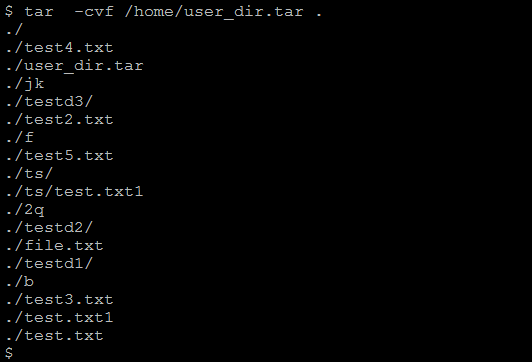
1.how to tar a directory in Linux
Using the tar Command to Create an Archive of Your Home Directory.
$tar -cvf  /home/user_dir.tar .
how to tar a directory in Linux
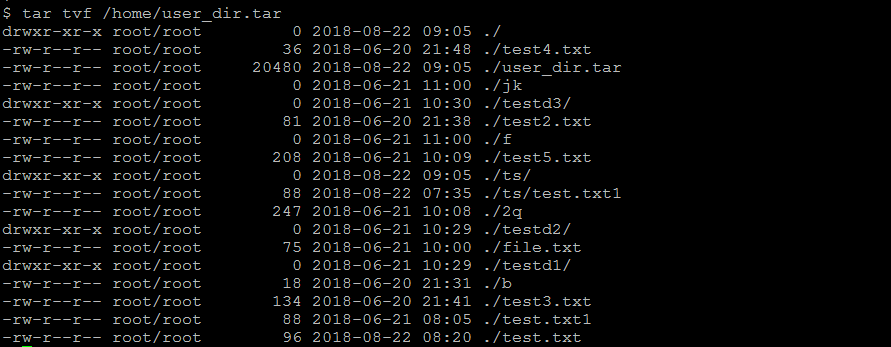
2. Lists the contents of the tar file created.
$tar -tvf /home/user_dir.tar
List content of tar files in Linux
3. To extract files from tar file:
$tar -xvf user_dir.tar
  1. To tar files as per include options:
$tar -cvf user_dir.tar -I list_of_files
tar command in linux with -l option
5. Extract a single file from tar
tar -xvf user_dir.tar /home/oracle/network/admin/tnsnames.ora
extract single file from tar file in Linux
  1.  Extract a single directory from tar
tar -xvf user_dir.tar /home/oracle/network/admin/
7.Extract group of files from tar  using regular expression
tar -xvf oracle_hom.tar –wildcards ‘*.ora’
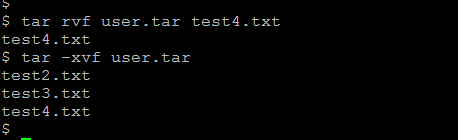
8. Adding a file or directory to an existing archive using option -r
tar rvf host_dir.tar new.txttar rvf host_dir.tar new/
add new file to the tar archive

Few important things to note down for tar command line

1) The relative path is important while extracting file from tar
Example
tar -cvf user_dir.tar /home/oracle/jdk
It create a tar file of/home/oracle/jdk and its all inside directory in the current directly where the command is executed
Now if you plan to untar this file.
Then It will create file in the same relative path
i.e
/home/oracle/jdk/file1
/home/oracle/jdk/file2
Now if you take the tar backup like this
cd /home/oracle/
tar -cvf user_dir.tar jdk
It create a tar file of jdk and its all inside directory in the current directly where the command is executed
Now if you plan to untar this file.
Then It will create file in the same relative path
i.e
jdk/file1
jdk/file2
So basically you can create jdk directory in any folder by this approach while by first approach,it will always created in /home/oracle/

Monday, 24 September 2018

tar command examples to create/extract archives in Linux

Tar command on Linux

The tar (tape archive) command is a frequently used command on linux that allows you to store files into an archive.
The commonly seen file extensions are .tar.gz and .tar.bz2 which is a tar archive further compressed using gzip or bzip algorithms respectively.
In this tutorial we shall take a look at simple examples of using the tar command to do daily jobs of creating and extracting archives on linux desktops or servers.

Using the tar command

The tar command is available by default on most linux systems and you do not need to install it separately.
With tar there are 2 compression formats, gzip and bzip. The "z" option specifies gzip and "j" option specifies bzip. It is also possible to create uncompressed archives.

1. Extract a tar.gz archive

Well, the more common use is to extract tar archives. The following command shall extract the files out a tar.gz archive
$ tar -xvzf tarfile.tar.gz
Here is a quick explanation of the parameters used -
x - Extract files
v - verbose, print the file names as they are extracted one by one
z - The file is a "gzipped" file
f - Use the following tar archive for the operation
Those are some of the important options to memorise
Extract tar.bz2/bzip archives
Files with extension bz2 are compressed with the bzip algorithm and tar command can deal with them as well. Use the j option instead of the z option.
$ tar -xvjf archivefile.tar.bz2

2. Extract files to a specific directory or path

To extract out the files to a specific directory, specify the path using the "-C" option. Note that its a capital C.
$ tar -xvzf abc.tar.gz -C /opt/folder/
However first make sure that the destination directory exists, since tar is not going to create the directory for you and will fail if it does not exist.

3. Extract a single file

To extract a single file out of an archive just add the file name after the command like this
$ tar -xz -f abc.tar.gz "./new/abc.txt"
More than once file can be specified in the above command like this
$ tar -xv -f abc.tar.gz "./new/cde.txt" "./new/abc.txt"

4. Extract multiple files using wildcards

Wildcards can be used to extract out a bunch of files matching the given wildcards. For example all files with ".txt" extension.
$ tar -xv -f abc.tar.gz --wildcards "*.txt"

5. List and search contents of the tar archive

If you want to just list out the contents of the tar archive and not extract them, use the "-t" option. The following command prints the contents of a gzipped tar archive,
$ tar -tz -f abc.tar.gz
./new/
./new/cde.txt
./new/subdir/
./new/subdir/in.txt
./new/abc.txt
...
Pipe the output to grep to search a file or less command to browse the list. Using the "v" verbose option shall print additional details about each file.
For tar.bz2/bzip files use the "j" option
Use the above command in combination with the grep command to search the archive. Simple!
$ tar -tvz -f abc.tar.gz | grep abc.txt
-rw-rw-r-- enlightened/enlightened 0 2015-01-13 11:40 ./new/abc.txt

6. Create a tar/tar.gz archive

Now that we have learnt how to extract existing tar archives, its time to start creating new ones. The tar command can be told to put selected files in an archive or an entire directory. Here are some examples.
The following command creates a tar archive using a directory, adding all files in it and sub directories as well.
$ tar -cvf abc.tar ./new/
./new/
./new/cde.txt
./new/abc.txt
The above example does not create a compressed archive. Just a plain archive, that puts multiple files together without any real compression.
In order to compress, use the "z" or "j" option for gzip or bzip respectively.
$ tar -cvzf abc.tar.gz ./new/
The extension of the file name does not really matter. "tar.gz" and tgz are common extensions for files compressed with gzip. ".tar.bz2" and ".tbz" are commonly used extensions for bzip compressed files.

7. Ask confirmation before adding files

A useful option is "w" which makes tar ask for confirmation for every file before adding it to the archive. This can be sometimes useful.
Only those files would be added which are given a yes answer. If you do not enter anything, the default answer would be a "No".
# Add specific files

$ tar -czw -f abc.tar.gz ./new/*
add ‘./new/abc.txt’?y
add ‘./new/cde.txt’?y
add ‘./new/newfile.txt’?n
add ‘./new/subdir’?y
add ‘./new/subdir/in.txt’?n

# Now list the files added
$ tar -t -f abc.tar.gz 
./new/abc.txt
./new/cde.txt
./new/subdir/

8. Add files to existing archives

The r option can be used to add files to existing archives, without having to create new ones. Here is a quick example
$ tar -rv -f abc.tar abc.txt
Files cannot be added to compressed archives (gz or bzip). Files can only be added to plain tar archives.

9. Add files to compressed archives (tar.gz/tar.bz2)

Its already mentioned that its not possible to add files to compressed archives. However it can still be done with a simple trick. Use the gunzip command to uncompress the archive, add file to archive and compress it again.
$ gunzip archive.tar.gz
$ tar -rf archive.tar ./path/to/file
$ gzip archive.tar
For bzip files use the bzip2 and bunzip2 commands respectively.

10. Backup with tar

A real scenario is to backup directories at regular intervals. The tar command can be scheduled to take such backups via cron. Here is an example -
$ tar -cvz -f archive-$(date +%Y%m%d).tar.gz ./new/
Run the above command via cron and it would keep creating backup files with names like -
'archive-20150218.tar.gz'.
Ofcourse make sure that the disk space is not overflown with larger and larger archives.

11. Verify archive files while creation

The "W" option can be used to verify the files after creating archives. Here is a quick example.
$ tar -cvW -f abc.tar ./new/
./new/
./new/cde.txt
./new/subdir/
./new/subdir/in.txt
./new/newfile.txt
./new/abc.txt
Verify ./new/
Verify ./new/cde.txt
Verify ./new/subdir/
Verify ./new/subdir/in.txt
Verify ./new/newfile.txt                                                                                                                              
Verify ./new/abc.txt
Note that the verification cannot be done on compressed archives. It works only with uncompressed tar archives.
Thats all for now. For more check out the man page for tar command, with "man tar".